Integration
Plugin
The minimum supported Unity version is 6000.0.61f1 or later.
Please import P101XPUnitySdkPlugin_1_*_*.unitypackage into your Unity project:
- From the menu bar, choose Assets → Import Package → Custom Package....
- Select the file
P101XPUnitySdkPlugin_1_*_*.unitypackage. - In the import dialog, select all items and click the Import button.
If you are migrating from an older version of the plugin, please carefully review the Migration section.
Some older versions require additional manual steps to complete the migration properly.
In addition, for the iOS platform, extra steps are required (see below).
iOS
Remote Repository Configuration
To configure the 101XP plugin remote repository, please use the script setup_sdk_stage.sh:
chmod +x setup_sdk_stage.sh
./setup_sdk_stage.sh
After the script finishes, make sure there are no errors. If everything is fine, the remote repository configuration is complete.
To build your project after exporting from Unity, open the Unity-iPhone.xcworkspace file, not
Unity-iPhone.xcodeproj.
Updating 101XP SDK for iOS
These steps are required for every 101XP SDK update.
To fetch the latest remote repository updates on your local machine, run:
pod repo-art update p101xp-stage
After that, you can export the Unity project to an Xcode project and try to build.
If you want to update the plugin for an already exported project, run:
cd /path/to/exported/project/dir
pod repo-art update p101xp-stage
pod update
Xcode Configuration
Please check the files in Assets/Platform101XP/iOSConfig/:
GoogleService-Info.plist Replace this file with your Firebase plist config file (ask your manager).
P101XP.entitlements This entitlements file contains settings for the Xcode project (you can edit it as needed).
P101XP-Info.plist This file contains Info.plist values. Do not edit this file manually. It is generated automatically based on your plugin settings.
Settings
To get started, use the Settings Inspector to quickly configure the SDK.
From the Unity menu bar, choose Window → P101XP → Settings to open the Settings Inspector window.
Ask your release manager for the required parameters.
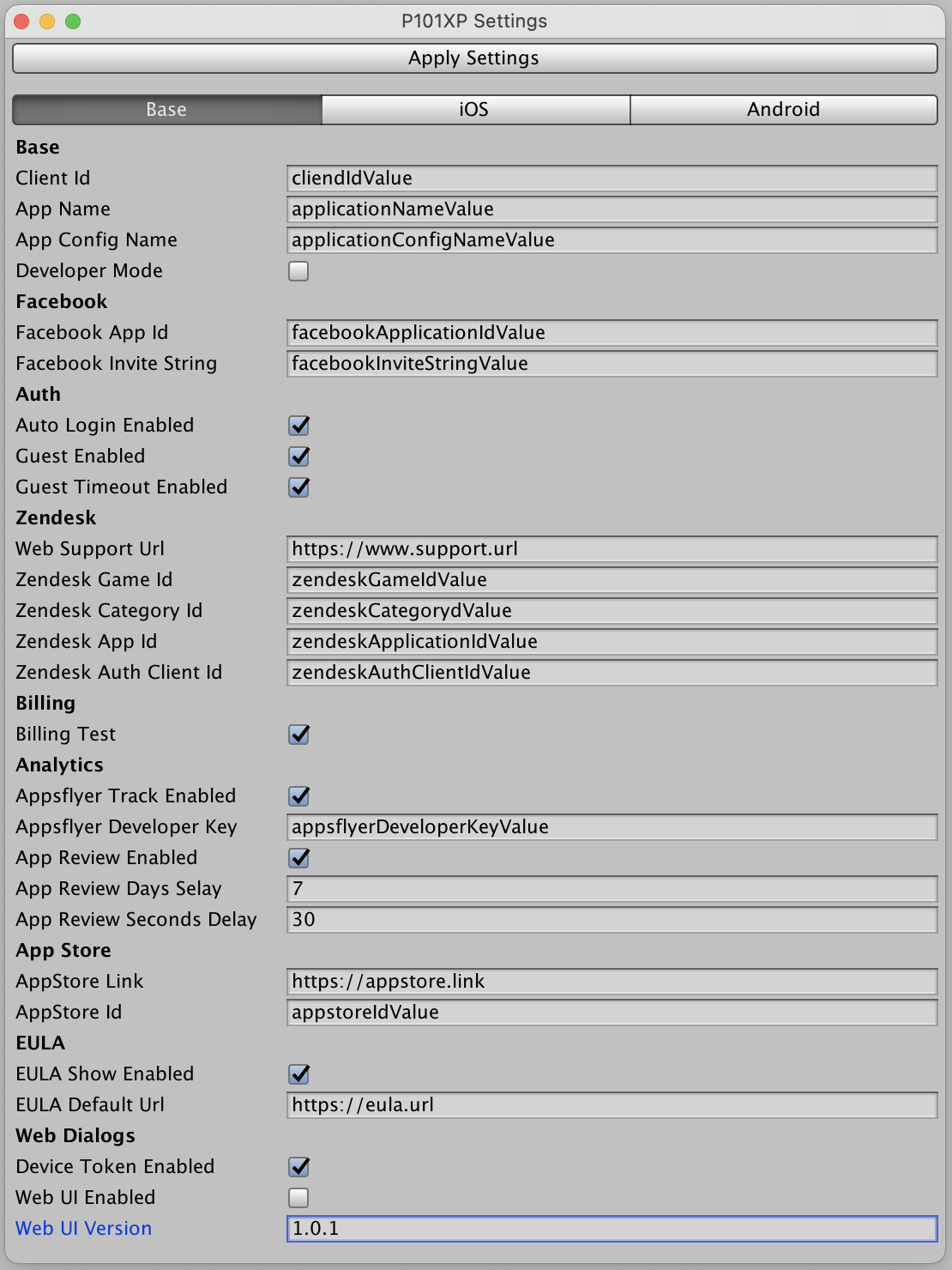
To apply the settings, click the [Apply settings] button.
This will generate the configuration files (such as P101XP-Info.plist, AndroidManifest.xml, etc.).
Configuration files are generated using templates located in the
Assets/Platform101XP/Templates/ folder.
Feel free to modify these templates if you plan to change your settings frequently.
Changing config template files can cause issues with future plugin updates. Make changes carefully and remember to re-apply or merge them when you update the plugin.